
Understanding the Orders page
This is where you have visibility of D2C (Direct to Consumer) and B2B (Business to Business) and FBA replenishment orders including the current status of them.
It will display any orders you've added manually as well as orders synced directly from your sales channels.
There are multiple searching field options so you can toggle clearly what information you are looking for:
Status
There is a Status field and here you can select the below options to filter your search:
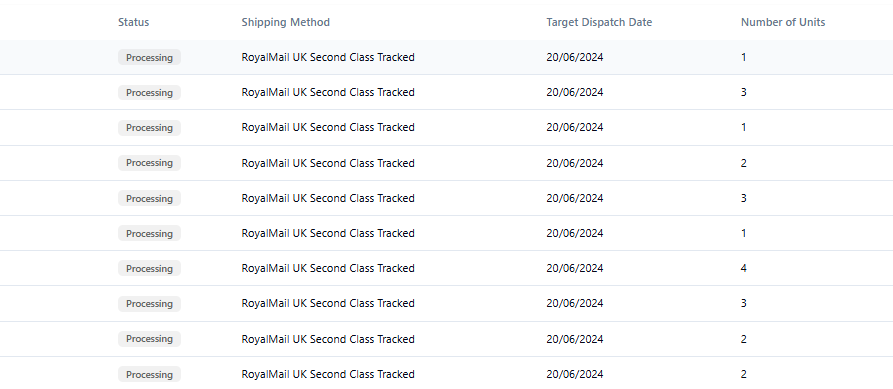
Processing: When an order is in a processing state, it means that it is awaiting to be picked by the warehouse team. This is the status when an orders pulls through from a sales channel or has ben created manually. You can edit things such as the items in the order, quantity, customs value shipping address and shipping method.
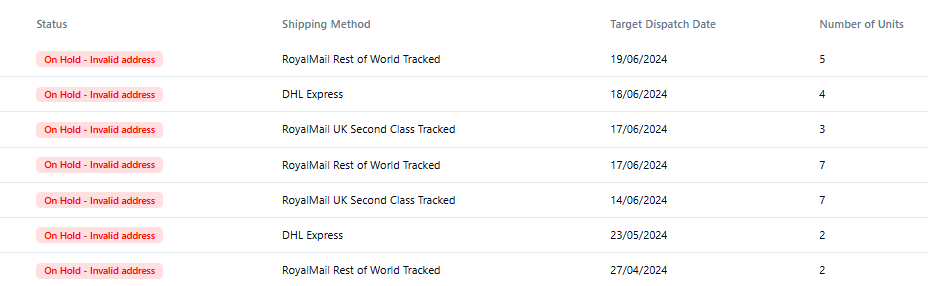
On Hold: From on hold, you can also filter this further using the ‘+ On Hold Reason’ by selecting reasons like Awaiting Payment, Inventory Unavailable, Missing Customs Value, Review Required, Fraud Risk, Invalid Address or Invalid Shipping Method. By filtering these orders it will allow you to only see those orders that need attention or tweaking.
Picked: This means that the order has been physically picked in the warehouse and will shortly be packed. At this stage the order contents can not be edited although you can still edit the shipping address, shipping method and customs value.
Packed: Orders mostly do not stay in this status for a long period of time as the order usually goes straight to shipped.
Shipped: The order has been completed and will be handed over to the courier. To filter this down further you can select the ‘+ Delivery Status’ button and it will show status’s such as Shipped-Pending (awaiting to be scanned into the couriers network) In-Transit, Returned, Failed, Delivered or Shipped Unavailable (untracked service has been used and there is no tracking information available.)
Cancelled: Order has been cancelled in Pimento. Please note that any order cancelled in a sales channel ie Shopify will not automatically cancel it in Pimento, it will need to be done within the system using the ‘Edit Status’ button.
Shipping
Here you can select any shipping option and orders with this on the order will show, for example you could filter Royal Mail Second Class Tracked (Tracked 48) to see how many orders are being sent on that service or alternatively you can see which orders have been marked as Collection, this one is mainly used for B2B (Business to Business) orders.
Product
This drop down will show all the products and inserts in your inventory, for ease or brands with a high amount of SKU’s there is also a search bar function. This allows you to search for stock allocated in orders, for example you can filter Shipped/Intensive Hair Mask and it will show you all the orders that have been shipped with that SKU within the order or use it to see what orders are being held up due to lack of inventory.
Fields
These can be located on the top right of the orders page and are used to filter down orders even further such as Customer First Name, Shipping Line One, Postcode, Customs Value, Channel Tags, Shipping Method and Country just to name a few!